Add Nol Card to Samsung Wallet: Compatibility & Setup (2026)
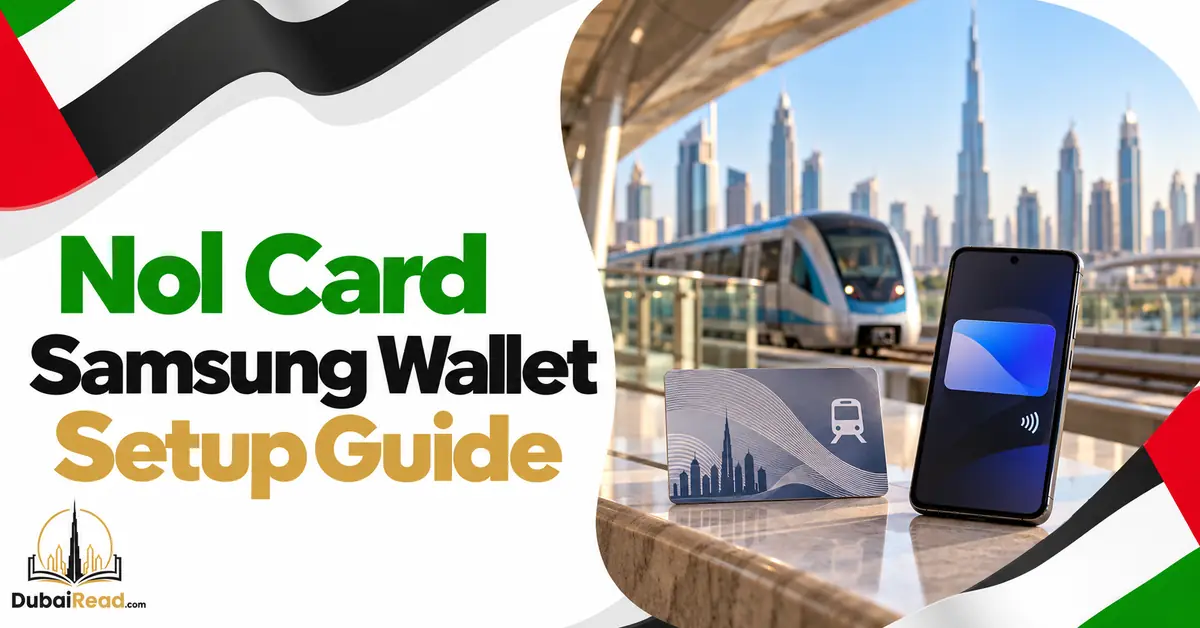
You can use a virtual nol card on an eligible Samsung Galaxy, but NFC and Samsung Wallet alone do not guarantee eligibility. Check the exact model before converting a physical card. Conversion deactivates the plastic card, so complete setup before arriving at a station.
Check model and region compatibility
RTA’s nol service links to a supported-device list. Check the full model number. RTA’s September 2026 page says S26 compatibility is coming soon, despite broader manufacturer guidance mentioning newer phones; the transport service’s eligibility check decides whether issuance is available.
Samsung Wallet guidance makes availability dependent on model, region, carrier and firmware. An imported phone can behave differently from a UAE device with the same family name.
- Update Wallet, nol Pay and the phone software.
- Enable NFC and sign in to the required services.
- Check that the nol transit option is actually offered.
- Use a stable internet connection for issuance or conversion.
Choose the correct setup path
| Starting point | Path |
|---|---|
| New digital card | Follow the nol/transit option offered in Samsung Wallet, including a nol Pay handoff if shown. |
| Physical Silver or Gold card | Use nol Pay’s physical-card digitisation service on an eligible phone. |
| Personal concession card | Check RTA’s personal virtual-card application/renewal options rather than assuming the Silver/Gold conversion method applies. |
If the nol option is absent, check eligibility with Samsung or RTA. Menu names change with versions; do not force a region change or buy another card simply to make a menu appear.
Convert a physical Silver or Gold card
- Open nol Pay, select Get My nol Card and the physical-card digitisation option.
- Read the supported-card and deactivation warning.
- Hold the card against the phone’s NFC area without moving it.
- Confirm conversion, then wait for successful digital issuance.
- Check balance and complete the backup offered by the service.
Samsung’s official instructions limit this physical conversion path to Silver and Gold cards and confirm physical-card deactivation. Red Tickets are separate. RTA now offers personal virtual-card issuance, so saying every personalised card is excluded would be too broad.
Travel and top up
Follow the issued card’s tap instructions at entry and exit. Present the phone’s NFC area and wait for acceptance. Keep usable balance and phone charge; do not assume a switched-off phone will work. Use the supported virtual-card recharge flow shown in nol Pay.
Back up the virtual card before resetting, replacing or repairing the phone. Keep account details accessible and ask RTA about transfer/recovery before removing the existing card.
Common problems
- No nol option: check full model, firmware, region and support list.
- Card cannot be read: remove nearby cards/case, locate NFC and hold still.
- Plastic card stopped working: this is expected after conversion.
- Reader rejects the phone: check activation, selected transit card, NFC and usable balance.
Frequently asked questions
Does every NFC Galaxy support nol?
No. Wallet support and nol eligibility are separate checks.
Is the physical card a backup after conversion?
No. It is deactivated, so do not give it to another traveller.
Is iPhone setup the same?
No. iPhone physical-card management and QR tickets differ from NFC virtual-card issuance.